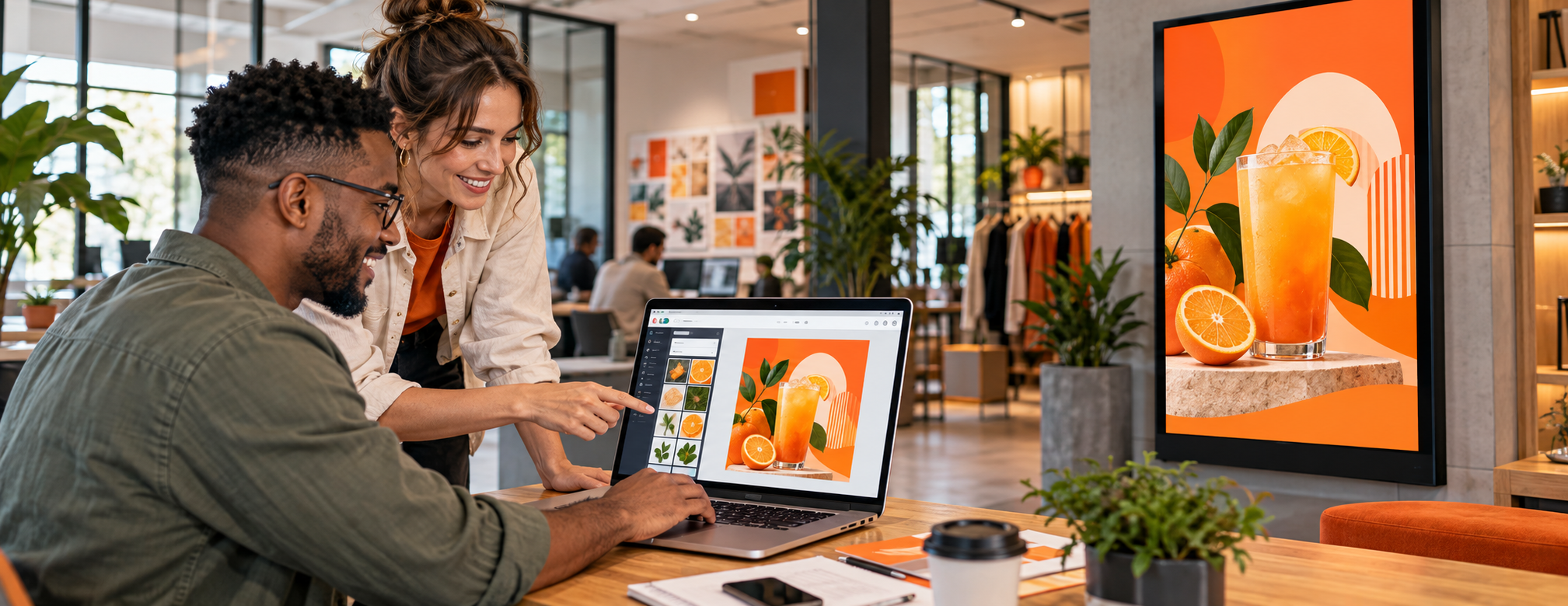
Using Canva for digital signage lets you create and edit screen content from inside Imagine Digital Signage, save designs to your media library, and add them to playlists. If you edit a Canva design that is already playing, the updated version can appear on connected screens within seconds, depending on the changes and where the item sits in the playlist loop.
That makes everyday updates, such as a new menu price, a change in trading hours, or a seasonal notice, much easier to manage, because you do not need to leave your content management system (CMS), export a new file, and manually replace the old design in every playlist.
How Does the Canva Integration Work?
Once you connect your Canva account to Imagine, you can open Canva directly from the Imagine CMS. Design your content using Canva's tools and templates, then save it to your Imagine media library, where finished designs appear in a dedicated Canva folder. From there, add them to the playlists that run on your screens.
- Connect your existing Canva account to Imagine Digital Signage.
- Open Canva from inside Imagine and create a design, or edit an existing one.
- Save the design into your Imagine media library.
- Add the media item to one or more playlists.
- Make later changes to that Canva design without removing and re-adding the playlist item.
The Canva tools and assets available to you depend on your Canva subscription. Imagine works with free and Pro Canva accounts, so a free account can be used with Canva's normal free-plan limitations, while paid features need the appropriate Canva subscription. You can read more on the Canva integration page.
What Happens When You Edit a Design That Is Already on Screen?
Imagine keeps the existing Canva media item connected to the playlist, so when you edit the design the changes can be reflected on the screens automatically, without replacing the item manually. At present, changes can appear within a few seconds, depending on the scope of the edit and the media item's position in the playlist loop.
If the same design is used in several playlists, the updated content can appear on every screen connected to those playlists. For a business with several branches, that means one change to a shared design instead of repeated uploads across locations.
For example, imagine a restaurant group changing the price of a popular meal. Instead of briefing a designer, waiting for a revised file, approving it, and uploading it again, an authorised team member could update the Canva design and let the existing playlists display the revised version.
What Can You Create with Canva for Digital Signage?
You can use the Canva design tools available on your subscription to produce everyday notices, branded graphics, promotional visuals, and more elaborate creative work. Some practical examples include:
- Restaurants and coffee shops: menu boards, daily specials, price updates, and opening-hour notices.
- Retail stores: product-and-price promotions, seasonal offers, and campaign end-date reminders.
- Offices and workplaces: internal announcements, visitor messages, and staff communications.
- Events and hospitality: welcome screens, event information, and countdown graphics.
- South African businesses: Heritage Day messages, festive trading hours, and locally relevant promotions.
You do not have to build every screen from scratch, either. Imagine also offers widgets, including news, weather, countdowns, and social feeds, that can sit alongside your Canva content in playlists.
Why Create Content Inside the CMS Instead of Uploading Files Manually?
The biggest advantage is control over routine changes. You can make a quick adjustment yourself, without repeatedly briefing a third party, waiting for a file, or switching between websites, which is particularly helpful when information changes often.
Canva's ready-made templates also make simple design tasks more accessible to people without formal design training. That does not mean professional designers are unnecessary, because large campaigns, detailed animation, and technically demanding creative work can still benefit from specialist expertise.
A sensible approach is to have a designer develop a set of branded templates and then let trained staff update dates, prices, and short messages when required, while smaller businesses may be comfortable creating most of their everyday screen content themselves.
What Design Tips Do Real Network Operators Recommend?
A design that looks good on a laptop is not automatically effective on a screen across a shop floor, so keep the viewing environment in mind when using Canva for digital signage.
- Design for the actual screen dimensions. A standard landscape display may use 16:9 (1920 × 1080), while portrait screens and long LED strips may need very different layouts.
- Make the message readable at a distance. Use clear type, strong contrast, and a visual hierarchy that makes the key information obvious.
- Lead with the important detail. For a promotion, the product, price, and validity dates matter more than a long tagline.
- Keep the design uncluttered. Viewers may only glance at the screen for a few seconds.
- Maintain recognisable branding. Use consistent colours, typography, and visual elements, even for playful, one-off campaigns.
- Use motion with purpose. A gently pulsing price tag or small animated detail can draw attention without the distraction of a long, busy video.
- Give viewers a next step when needed. A QR code, website address, or social handle can direct them to fuller information.
Where relevant, include promotional terms and conditions in a readable way and make validity dates easy to find, and avoid squeezing so much small print into the design that it becomes impossible to read.
How Do You Avoid Outdated Promotions with Playlist Scheduling?
Canva helps you create and update the visual, while Imagine handles where and when it plays. For time-limited campaigns, use Imagine's scheduling tools to set the intended start and end of a promotion, which reduces the risk of old offers remaining on screen after their validity period.
Learn more about playlist management and scheduling for campaign timing and expiry.
Is the Canva Integration Suitable for Non-Designers?
Yes. Imagine Digital Signage was built by people who manage real networks, with the aim of making everyday screen management straightforward. Canva templates help people start with an existing layout instead of a blank canvas, while the integration keeps content creation within the same CMS used to manage playlists.
Support matters too. The Imagine team can help users get started through an online demo or by answering questions when someone gets stuck, so you can keep simple updates in-house and involve designers when a project needs more specialist creative work. To see the workflow for yourself, book a demo with the Imagine team.
Create Once, Update with Less Effort
Using Canva for digital signage makes it easier to handle the everyday content that keeps screens useful: price changes, notices, promotions, and branded messages. Combined with Imagine's playlists, scheduling, and widgets, it gives teams a practical way to manage content without turning every small edit into a separate design project. To see it in action, you can register in minutes or book a demo.
---
Frequently Asked Questions
Do I need Canva Pro to use the integration?
No. Imagine works with free and Pro Canva accounts, and the design features and assets you can use depend on your Canva subscription. The Canva integration page explains how to connect your account.
Can I edit a Canva design after adding it to a playlist?
Yes. The connected media item stays in the playlist, so editing the design updates it without removing the item or uploading a replacement.
How quickly will my Canva changes appear on screens?
Changes can appear within a few seconds, depending on how extensive they are and when that media item next appears in the playlist loop.
Will one Canva edit update several screens?
Yes. If the same design is in several playlists, the update can appear on every screen connected to those playlists, so one edit to a shared design replaces repeated uploads across branches.
Can I use Canva templates for digital menu boards?
Yes. Templates are a useful starting point for menus and price lists, as long as you set the layout to the correct screen dimensions and prioritise readability. Our guide to digital menu boards in South Africa covers layout and readability for menus in more detail.
Does Canva replace Imagine's scheduling tools?
No. Canva is used for creating and editing content, while Imagine manages the media library, playlists, delivery to screens, and scheduling.