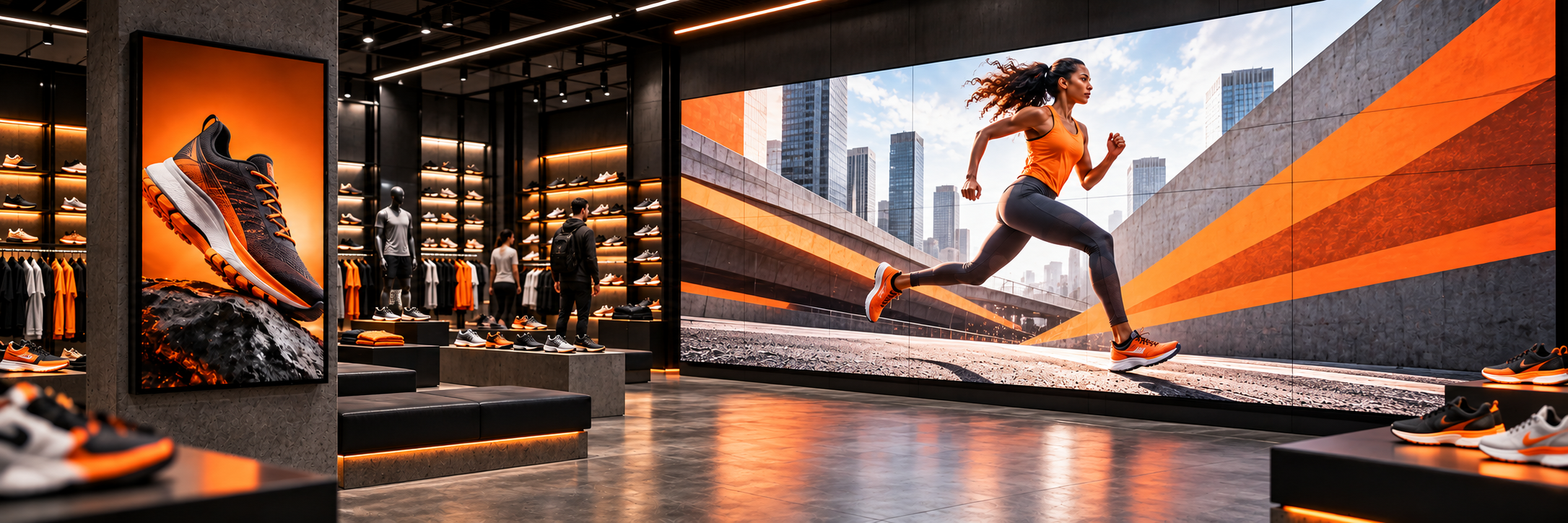
Imagine Digital Signage manages LCD and LED screens from one dashboard, with the same tools for playlists, scheduling, monitoring and reporting. Compatible Android and LG webOS LCD screens can run Imagine directly, while an LED display needs a compatible media player connected to its controller.
Can You Manage LCD and LED Screens with One Digital Signage System?
Yes. A business might have LCD menu boards indoors and a large LED display outside. The screens look different, but the person managing them still needs to upload content, decide when it plays, and check that every player is connected.
We recommend a digital signage platform that brings those tasks together. Running separate software for each screen type means repeating work every time a promotion changes. With Imagine you manage both screen types in one place, while keeping separate content and layouts where needed.
How Does the V&A Waterfront Manage Both LED and LCD Screens?
Imagine is used on both LED and LCD screens at the V&A Waterfront in Cape Town, bringing the whole network onto one system. The V&A team can change content across both screen types from the same dashboard and see the status of each connected player.
What Hardware Do You Need for LCD and LED Digital Signage?
LCD Screens
On a compatible Android or LG webOS LCD display, Imagine can run on the screen's built-in computer, often called a system-on-chip (SoC) player. Alternatively, an external media player can supply content to the screen. Check our supported digital signage hardware before choosing a device.
LED Displays
LED installations usually have a controller that sends the image to the LED panels. Common controller brands include NovaStar and Colorlight. Some controllers include playback functions, while others receive content from an external player. The arrangement depends on the installer and the controller model.
To run Imagine on an LED display, you need a compatible media player running the Imagine application and feeding content into the LED controller. A controller alone does not confirm compatibility. Before buying or changing hardware, send our team the screen, controller and player details.
LCD vs LED Hardware at a Glance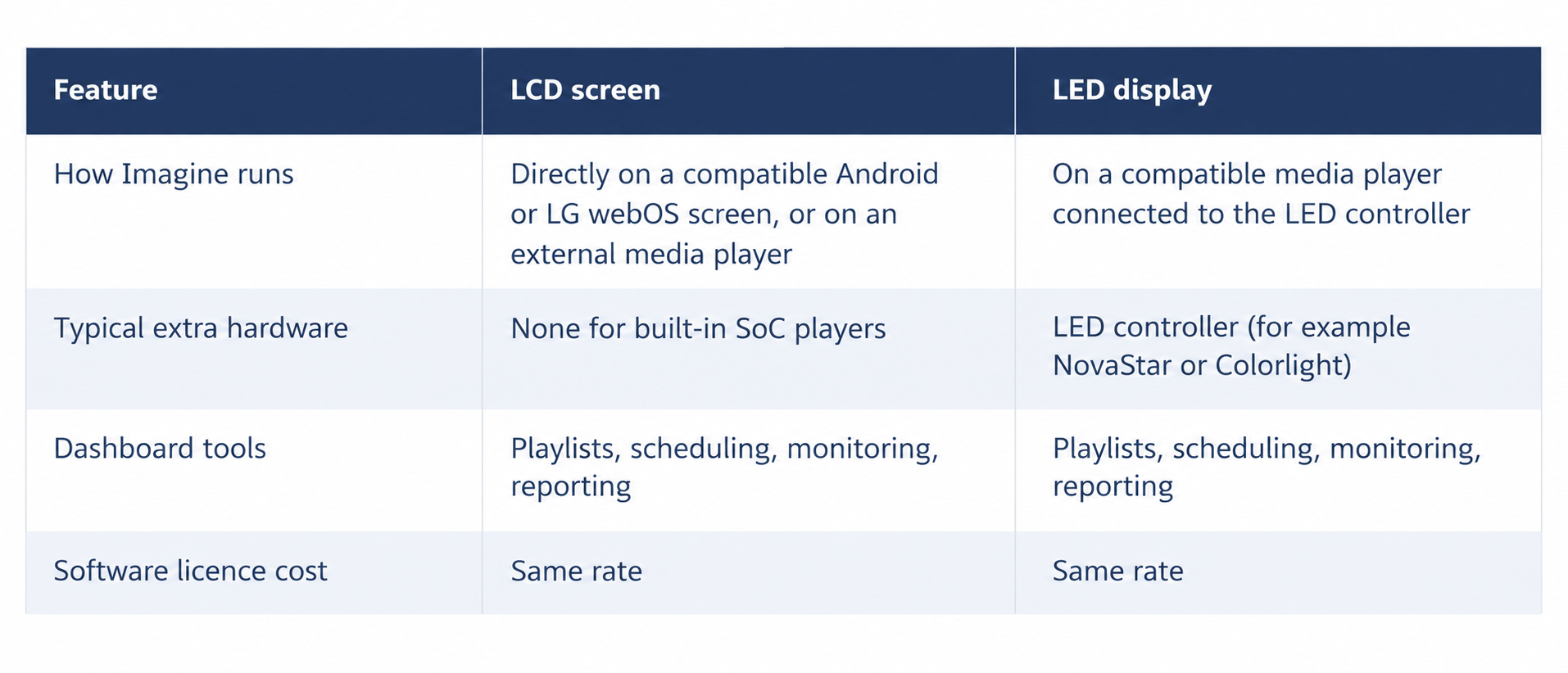
How Do You Get the Resolution and Content Right on LCD and LED Screens?
Imagine includes a built-in scaler and custom resolution settings on the playlist page. You can prepare playlists for landscape, portrait, square, or unusually wide displays, and use stretch, crop, or scaling options to fit the content.
Our recommendation is still to design and upload content at the resolution intended for playback. Stretching can distort a logo, while cropping can cut off part of a price or message. Getting the artwork right first gives you more control over the result.
For example, a promotion designed for a standard landscape LCD screen may need a separate layout for a long, narrow LED display. Keep the offer consistent, but rearrange the text and images for each format. Your integrator should confirm the required pixel dimensions and how the player output maps onto the LED wall.
Two things to remember:
- Physical size does not tell you the resolution.
- Imagine's layout flexibility does not remove the output or decoding limits of the player and controller.
Confirm those details for your installation, then build the content in your Imagine playlists.
Do LED Displays Get the Same Scheduling and Features as LCD Screens?
Yes. Using an LED display does not mean giving up the features available on LCD screens. Imagine provides scheduling, smooth content playback, free content widgets, monitoring, and reporting for both.
For example, a retailer can schedule a weekend promotion on an outdoor LED display and on its indoor LCD screens. Where the proportions differ, the team prepares a version for each layout and schedules both for the campaign period, all from one account.
The content scheduling tools let you plan changes ahead of time, and you do not need to be on the premises to update a connected player.
What Happens to Playback During Internet and Power Outages?
Internet outages: Imagine keeps playing downloaded content when the internet connection drops, whether it runs directly on an LCD display or on an external player feeding an LED controller. An internet connection is needed to receive new content and to report current remote status. Content that relies on live online data may also need connectivity to refresh.
Power outages: Imagine is designed to resume playback after power returns. The installation still needs the display, player and LED controller to restart correctly. Ask your integrator to test the full restart sequence during commissioning, including any device start-up settings.
How Do You Check Screen Status and Playback Remotely?
Imagine shows online, offline and downloading status for each player, and lets you request a screenshot of the player's output for either screen type. This lets your team check what content the software is rendering without travelling to each location.
A player screenshot is useful playback evidence, but it is not a photograph of the physical display. It does not confirm that every LED module, cable, or LCD panel is working, so physical faults may still need an on-site check by your integrator.
Does an LED Display Cost More to License?
No. The Imagine software licence price is the same for LED and LCD. Whether the display is a 10 × 10 metre LED wall or a small 32" LCD screen, its physical size does not increase the licence rate.
Installation and integrator support costs may differ, so ask for those to be quoted separately. For software pricing, see the Imagine pricing page.
Checklist: Before You Choose a Digital Signage System
- Confirm that your LCD and LED screens can be managed from one system.
- List the screen, controller, and player for every location.
- Confirm the playback resolution and the pixel dimensions for each screen.
- Test a sample of your own content on each screen type.
- Ask your integrator to test the full restart sequence after a power cut.
- Get installation costs quoted separately from software licences.
The goal is to make content changes easier and avoid repeating the same work across different platforms.
Next Steps
Start with the hardware you already have, confirm the playback resolution, and test a sample of your own content. If you are planning a new installation or bringing an existing network together, contact the Imagine team. We can review your screen, controller, and player details before you commit. You can also register for a free plan for your first screen or book a demo.
---
Frequently Asked Questions
Can an LCD screen and an LED display run the same campaign?
Yes. Prepare a version of the artwork for each screen shape, keep the offer consistent, and schedule both versions for the same dates from one account. You do not need to be on site to update a connected player. See the Knowledge Centre scheduling guide or the scheduling feature.
What does an LED controller do in a signage setup?
The controller receives the image and sends it to the LED panels. Common brands include NovaStar and Colorlight. Some controllers can play content themselves, while others receive it from an external player, so the setup depends on your installer and controller model. To run Imagine, a compatible media player running the Imagine app feeds the controller. Check the supported hardware list.
What should you check before buying a media player for an LED display?
A controller alone does not confirm compatibility. Send your screen, controller, and player details to the Imagine team before you buy, and ask your integrator to confirm the playback resolution and the output limits of the player and controller. Contact the Imagine team with those details.
What happens to an LED wall after a power cut?
Imagine is designed to resume playback when power returns, but the display, player, and LED controller must all restart correctly too. Ask your integrator to test the full restart sequence during commissioning, including start-up settings. Downloaded content also keeps playing if the internet drops. See the hardware and compatibility guide.
Do LCD and LED screens need separate artwork?
Usually, yes. Design each version at the resolution it will play at, because stretching can distort a logo or crop a price. Imagine's built-in scaler and custom resolution settings help with landscape, portrait, square, and extra-wide screens, but they do not remove player or controller limits. Explore Imagine playlists.